 K
KModules
Authentication
Merchant
Catalog
Order
Events
Logistics
Shipping
Review
Financial
Solutions
How to configure a webhook
Configure the webhook in the same area as the application credentials, in the specific webhook configuration tab.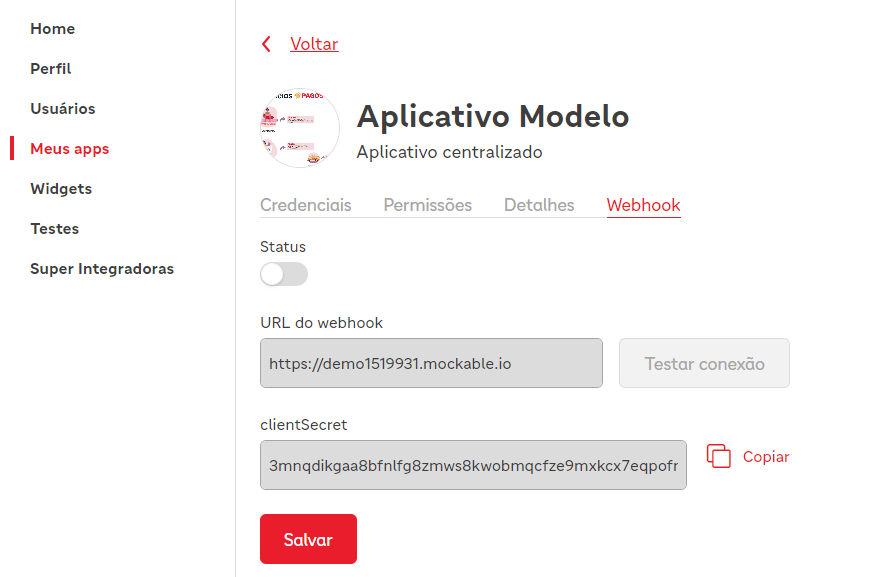 After enabling the webhook, register a URL to receive events and adjust the necessary settings. Use a URL with HTTPS scheme, according to RFC 3986 (for example, https://example.com/webhook). Changes (including toggles) are only applied after clicking save.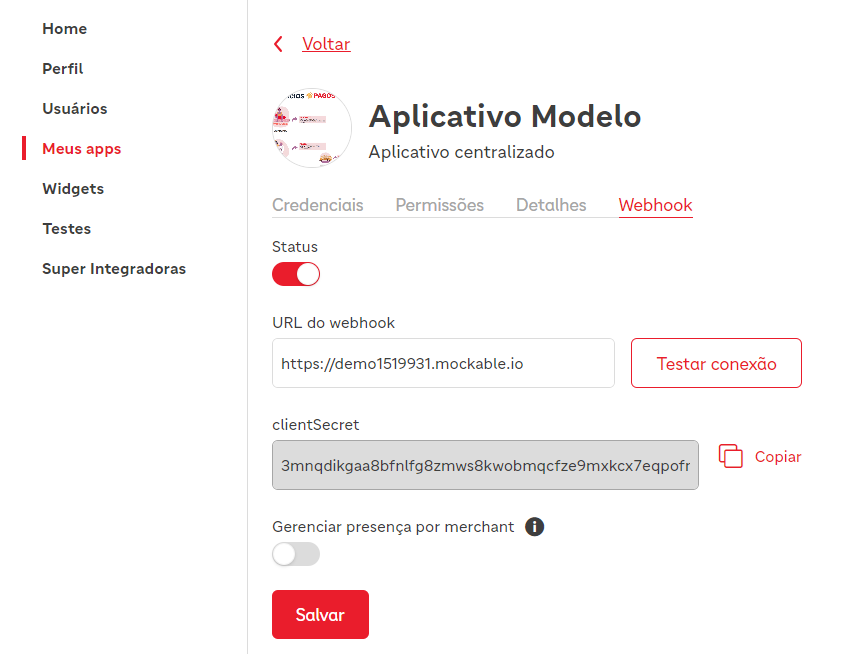
Presence configuration
The system enables presence by default for each application registered in the webhook. The endpoint starts receiving presence events up to 30 seconds after webhook registration.Learn more about presence and event processing here.
Presence per application or per merchant
You can send a single ping request to bring all merchants of the application online. You can also send ping requests individually for each merchant with access to theorder scope, if you need to control which merchants stay online on the platform.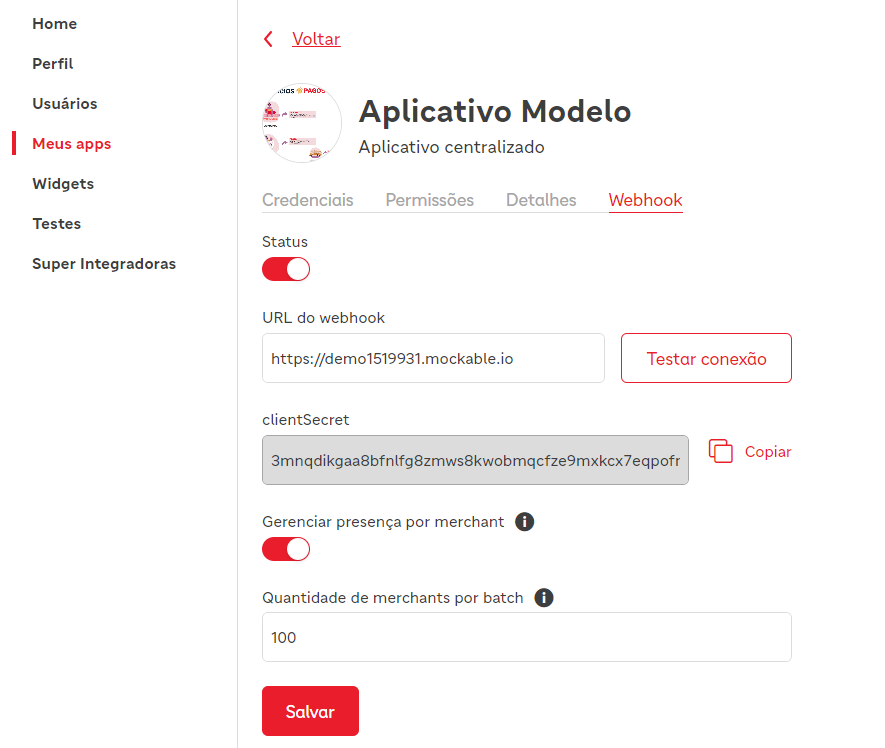
Integration blocking
iFood can block webhooks only in extreme cases, after contact attempts regarding integration issues. You can check the blocking status in the application area.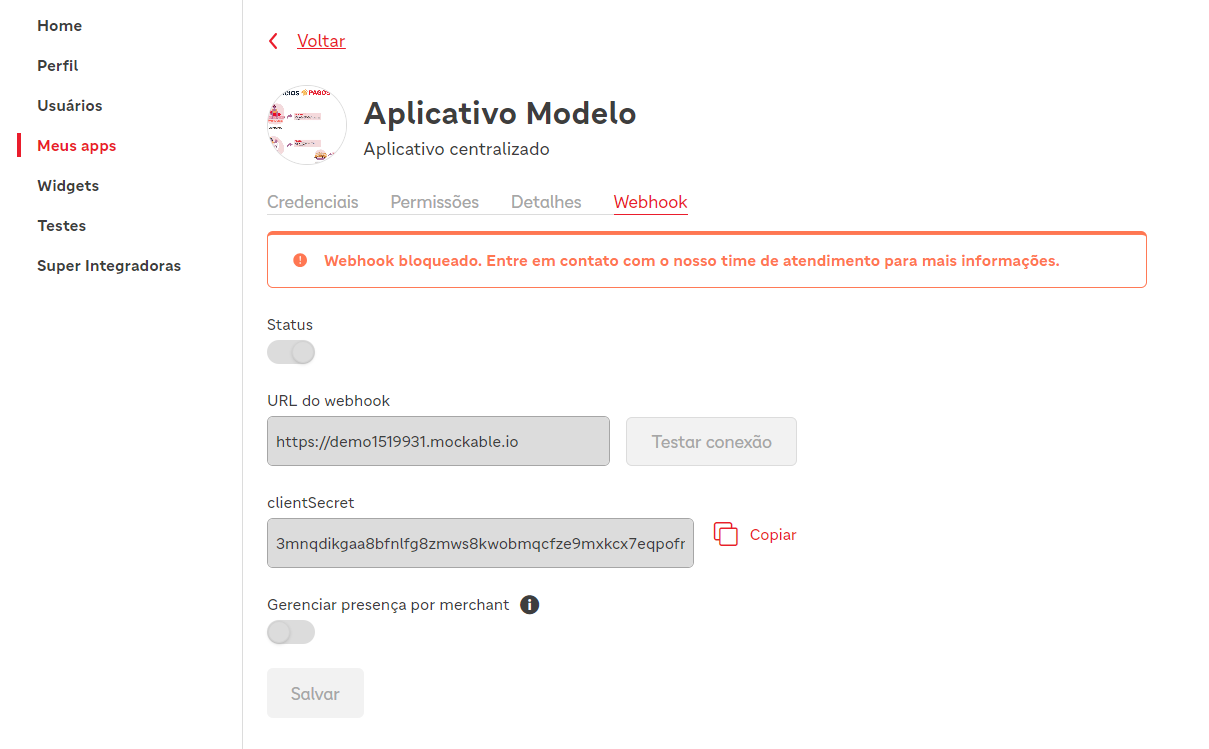
Blocking our IPs
If the integration uses a firewall, whitelist the IPs from our infrastructure to ensure proper functioning. Learn more in Best practices.See also
Was this page helpful?
Rate your experience in the new Developer portal: