 K
KModules
Authentication
Merchant
Catalog
Order
Events
Logistics
Shipping
Review
Financial
Solutions
Catalog
Create and manage your store's menu on iFood via API. The Catalog API syncs categories, items, and complements in real time across Delivery, Digital Menu, and Dine-in, with independent prices and availability per channel.If you're integrating an existing POS, use the API to mirror your menu on iFood and keep prices, status, and inventory up to date across all platforms.Start here
Follow the 5 hands-on steps below to create your first catalog, category, item, and complements. For concepts, see How It Works.Before you begin
You need:merchantId— Your store ID, provided during onboarding.accessToken— Bearer token for authentication. See Authentication to get yours.
YOUR_MERCHANT_ID and YOUR_ACCESS_TOKEN with your values.Step 1: List your catalogs
Every store already has at least one catalog created. List them to get thecatalogId you'll use in the next steps:curl --request GET \
--url 'https://merchant-api.ifood.com.br/catalog/v2.0/merchants/YOUR_MERCHANT_ID/catalogs' \
--header 'Authorization: Bearer YOUR_ACCESS_TOKEN'catalogId.Step 2: Create a category
Create a category inside the catalog withPOST /categories. The template field defines the category type — use DEFAULT for common items (snacks, beverages, desserts); use PIZZA for special structures.curl --request POST \
--url 'https://merchant-api.ifood.com.br/catalog/v2.0/merchants/YOUR_MERCHANT_ID/categories' \
--header 'Authorization: Bearer YOUR_ACCESS_TOKEN' \
--header 'Content-Type: application/json' \
--data '{
"name": "Snacks",
"status": "AVAILABLE",
"template": "DEFAULT"
}'id — you'll use it as categoryId in the next step.Step 3: Create an item
Create an item withPUT /items using the categoryId returned in Step 2.Payload hierarchy
Before you create one, understand the nested structure of thePUT /items payload:item → item metadata (id, price, status, categoryId)
├── products → products used in the item and in complements
├── optionGroups → complement groups (drinks, sizes)
└── options → options inside the groups (Coca-Cola, juice)optionGroups and options are empty.ID generation and patterns
Theid fields (for items, products, and options) are generated by you and must follow the UUID v4 standard. Each id must be unique within the merchant.If you send an id that is not in UUID v4 format, the API will return a 404 error. Examples of valid UUID v4s:550e8400-e29b-41d4-a716-446655440000123e4567-e89b-12d3-a456-426614174000
externalCode field is your custom identifier for POS integration. Unlike the id, the externalCode does not need to follow the UUID pattern — it's an arbitrary string you control. Keep a consistent pattern in it. Valid examples:BURGER_001,COKE_001,COLDRINK_GROUPxburger-default,frappuccino-large
The `id` must be UUID v4 (required). The `externalCode` is optional but recommended to make bidirectional synchronization with your POS easier and prevent duplicates. Do not send an `id` in any other format — you will receive a `404` error.
curl --request PUT \
  --url 'https://merchant-api.ifood.com.br/catalog/v2.0/merchants/YOUR_MERCHANT_ID/items' \
  --header 'Authorization: Bearer YOUR_ACCESS_TOKEN' \
  --header 'Content-Type: application/json' \
  --data '{
    "item": {
      "id": "550e8400-e29b-41d4-a716-446655440000",
      "type": "DEFAULT",
      "categoryId": "YOUR_CATEGORY_ID",
      "status": "AVAILABLE",
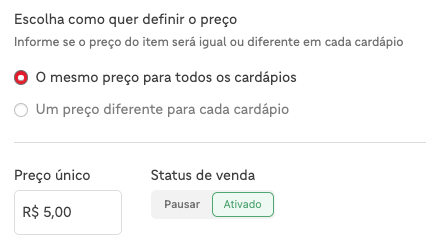
      "price": {"value": 25.00},
      "externalCode": "BURGER_001"
    },
    "products": [
      {
        "id": "550e8400-e29b-41d4-a716-446655440001",
        "name": "X-Burger",
        "description": "Bun, beef, cheese, and lettuce",
        "externalCode": "BURGER_PROD_001"
      }
    ],
    "optionGroups": [],
    "options": []
}'Step 4: Add complements
PUT /items is idempotent: each call replaces the entire item. To add complements (drinks, sizes, extras), resend the complete item structure with the optionGroups and options fields filled in.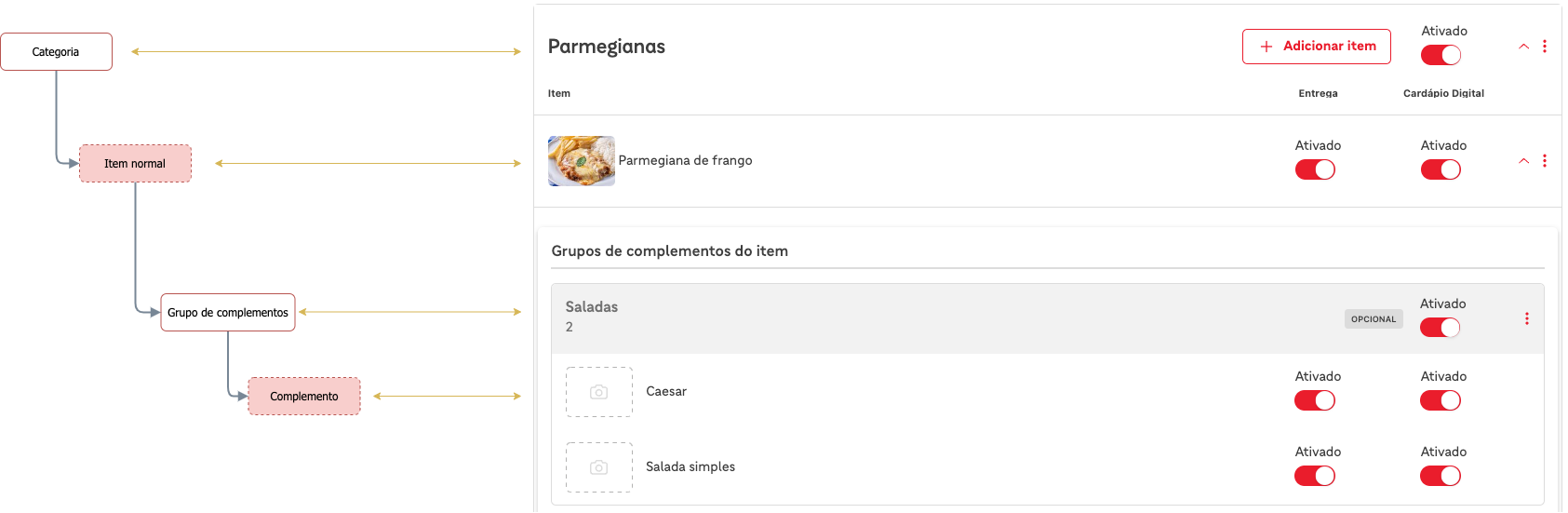
curl --request PUT \
  --url 'https://merchant-api.ifood.com.br/catalog/v2.0/merchants/YOUR_MERCHANT_ID/items' \
  --header 'Authorization: Bearer YOUR_ACCESS_TOKEN' \
  --header 'Content-Type: application/json' \
  --data '{
    "item": {
      "id": "550e8400-e29b-41d4-a716-446655440000",
      "type": "DEFAULT",
      "categoryId": "YOUR_CATEGORY_ID",
      "status": "AVAILABLE",
      "price": {"value": 25.00},
      "externalCode": "BURGER_001"
    },
    "products": [
      {
        "id": "550e8400-e29b-41d4-a716-446655440001",
        "name": "X-Burger",
        "description": "Bun, beef, cheese, and lettuce",
        "externalCode": "BURGER_PROD_001",
        "optionGroups": [
          {"id": "550e8400-e29b-41d4-a716-446655440010", "min": 0, "max": 1}
        ]
      },
      {"id": "550e8400-e29b-41d4-a716-446655440002", "name": "Cola"},
      {"id": "550e8400-e29b-41d4-a716-446655440003", "name": "Natural juice"}
    ],
    "optionGroups": [
      {
        "id": "550e8400-e29b-41d4-a716-446655440010",
        "name": "Choose a drink",
        "status": "AVAILABLE",
        "optionGroupType": "OFFER_UNIT",
        "optionIds": ["550e8400-e29b-41d4-a716-446655440020", "550e8400-e29b-41d4-a716-446655440021"]
      }
    ],
    "options": [
      {
        "id": "550e8400-e29b-41d4-a716-446655440020",
        "productId": "550e8400-e29b-41d4-a716-446655440002",
        "status": "AVAILABLE",
        "price": {"value": 8.00}
      },
      {
        "id": "550e8400-e29b-41d4-a716-446655440021",
        "productId": "550e8400-e29b-41d4-a716-446655440003",
        "status": "AVAILABLE",
        "price": {"value": 12.00}
      }
    ]
  }'
Step 5: Verify your catalog
List the items in the category to confirm everything was saved:curl --request GET \
--url 'https://merchant-api.ifood.com.br/catalog/v2.0/merchants/YOUR_MERCHANT_ID/categories/YOUR_CATEGORY_ID/items' \
--header 'Authorization: Bearer YOUR_ACCESS_TOKEN'Checklist
- Catalog and category with status
AVAILABLE. - Item with
price.valuedefined. - Complements present in the
GETresponse (if added). - Item appears in the category listing.
Troubleshooting
If something doesn't work as expected:- Item doesn't appear: Check if the item and category have
status: AVAILABLEand if the item hasprice.valuedefined. - Complements weren't saved: Use
PUT /items(notPOST) and always resend the complete structure withoptionGroupsandoptions. 409 Conflicterror: TheexternalCodeis unique per merchant. Use a different code or update an existing item by itsid.
Next steps
Your catalog is ready. The next step depends on your use case:- Understand the complete flow — How It Works shows when to call each endpoint and data hierarchy.
- Reference documentation — Fundamentals documents each field and its type.
- Special structures — See Pizza or Combo if you sell those structures.
- Multiple channels — Learn to use
contextModifiersand multiple contexts in How It Works. - Errors and solutions — Errors and Troubleshooting helps diagnose problems.
Was this page helpful?
Rate your experience in the new Developer portal: