 K
KModules
Authentication
Merchant
Catalog
Order
Events
Logistics
Shipping
Review
Financial
Solutions
How it works
Integrate the Merchant module and manage your stores in real time.Integration flow
1. Discovery
Discover which stores you can manage:GET /merchants— Lists all stores linked to your tokenGET /merchants/{merchantId}— Gets complete details of a store
2. Monitoring
Check operational status in real time:GET /merchants/{merchantId}/status— Queries store availability
- OK — Ready to receive orders
- WARNING — Online with restrictions
- CLOSED — Closed (expected, outside operating hours)
- ERROR — Problem to investigate
3. Operational management
Configure operating hours and temporary pauses:Operating hours:PUT /merchants/{merchantId}/opening-hours— Sets weekly hoursGET /merchants/{merchantId}/opening-hours— Queries hours
POST /merchants/{merchantId}/interruptions— Creates pauseGET /merchants/{merchantId}/interruptions— Lists pausesDELETE /merchants/{merchantId}/interruptions/{interruptionId}— Removes pause
4. Check-in (Groceries Stores)
Generate QR codes for delivery driver check-in:POST /merchants/checkin-qrcode— Generate PDF with QR codes for printing
- List all stores linked to your token
- Every 30 seconds: Query status of each store
- If status = ERROR: Investigate specific validations
- If needed to pause: Create interruption
- For Groceries stores: Generate and maintain printed QR codes
Store queries
Retrieve information about the stores associated with your access token. Use these endpoints to discover which stores you can manage and get details about each one.List all stores
List all stores linked to your token:curl --location 'https://merchant-api.ifood.com.br/merchant/v1.0/merchants' \
--header 'Authorization: Bearer TOKEN'page- Page number (starting at 1)size- Number of stores per page (default: 100)
200:[
{
"id": "550e8400-e29b-41d4-a716-446655440000",
"name": "Pizzaria Central",
"corporateName": "Pizzaria Central LTDA"
},
{
"id": "550e8400-e29b-41d4-a716-446655440001",
"name": "Burger King #42",
"corporateName": "Restaurant Brands International Brazil"
}
]| Field | Type | Description |
|---|---|---|
id | uuid | Unique identifier |
name | string | Name displayed in app |
corporateName | string | Legal name |
| HTTP | Code | Description |
|---|---|---|
| 401 | Unauthorized | Invalid or expired access token |
| 500 | InternalServerError | Error fetching store list |
AuthenticationUse the Bearer token provided during onboarding. The token determines which stores you can access via API.
Get store details
Get complete information about a store:curl --location 'https://merchant-api.ifood.com.br/merchant/v1.0/merchants/550e8400-e29b-41d4-a716-446655440000' \
--header 'Authorization: Bearer TOKEN'200:{
"id": "550e8400-e29b-41d4-a716-446655440000",
"name": "Pizzaria Central",
"corporateName": "Pizzaria Central LTDA",
"description": "Specializes in Neapolitan pizza",
"averageTicket": 85.50,
"exclusive": false,
"type": "RESTAURANT",
"status": "AVAILABLE",
"createdAt": "2024-01-15T10:30:00",
"address": {
"street": "Rua das Flores",
"number": "123",
"city": "São Paulo",
"state": "SP",
"postalCode": "01310-100",
"country": "BR",
"district": "Centro",
"latitude": -23.5505,
"longitude": -46.6333
},
"operations": {
"name": "delivery",
"salesChannel": {
"name": "ifood-app",
"enabled": true
}
}
}| Field | Type | Description |
|---|---|---|
id | uuid | Unique store identifier |
name | string | Name displayed to customers |
corporateName | string | Legal/corporate name |
description | string | Store description |
averageTicket | number | Average ticket value |
exclusive | boolean | Whether store is exclusive |
type | string | Type: RESTAURANT, STORE, GROUP |
status | string | Status: AVAILABLE, UNAVAILABLE, DISABLED |
createdAt | string | Creation date (ISO 8601) |
address.street | string | Street name |
address.number | string | Address number |
address.city | string | City |
address.state | string | State |
address.postalCode | string | ZIP code |
address.country | string | Country |
address.district | string | District |
address.latitude | number | Latitude |
address.longitude | number | Longitude |
operations.name | string | Operation type: delivery, indoor |
operations.salesChannel | object | Sales channel: ifood-app, etc |
| HTTP | Code | Description | Solution |
|---|---|---|---|
| 401 | Unauthorized | Invalid or expired token | Verify token is correct |
| 403 | Forbidden | No permission to access this store | Token not linked to this store |
| 500 | InternalServerError | Error fetching store details | Try again or contact support |
Next step: Check availabilityAfter getting store details, use the Status API to check in real time if the store can receive orders.
Store status
Requirements to receive orders
The store receives orders when:- Within opening hours
- Has a catalog with at least one menu enabled
- Has a delivery area configured
- Has no active interruptions
- Receives polling every 30 seconds
Check availability
Use the Status API to check if a store can receive orders.Possible states:| State | Color | Description | Required action |
|---|---|---|---|
| OK | Green | Store online | None |
| WARNING | Yellow | Online with restrictions (e.g., reduced area) | None |
| CLOSED | Gray | Closed as expected (outside opening hours) | None |
| ERROR | Red | Closed unexpectedly | Check |
is-connected: Polling every 30 secondsopening-hours: Within opening hours
| Validation | Description |
|---|---|
| unavailabilities | Active interruption |
| radius-restriction | No delivery drivers available in the area |
| payout-blocked | Financial pending issues |
| logistics-blocked | Logistics problems (festivals, traffic) |
| terms-service-violation | Terms of Service violation |
| status-availability | Store disabled or in testing |
Penalties
Applied when the store violates the Terms of Service.Types of penalties:- Automatic: Do not allow immediate reopening (e.g., many cancellations). Wait for the penalty to end.
- Manual: Can be removed by the store (e.g., interruptions created by the store).
Check reopening possibility
Thereopenable object indicates if reopening is possible:| Field | Description |
|---|---|
| reopenable | true or false |
| type | Type of closure (e.g., UNAVAILABILITY) |
| identifier | ID for reopening (when applicable) |
{
  "reopenable": {
    "identifier": "cca57aab-5ac0-4af4-a04d-48261350bebc",
    "type": "UNAVAILABILITY",
    "reopenable": true
  }
}reopenable: true, use the Interruptions API to remove the pause.When reopenable: false, check the message field in the Status API for more details.Interruptions
List interruptions
Use GET /interruptions to list active and future interruptions.Create interruption
Use POST /interruptions to create an interruption.Date format: ISO 8601Response: Object with ID, description, start, and end in extended ISO 8601 format.Time zoneInterruptions use the store's configured time zone. Any timezone in the payload is ignored.
Asynchronous processingClosure takes a few seconds to become effective. Continue polling for a few minutes to avoid losing orders during this interval.
Remove interruption
Use DELETE /interruptions/{id} with the merchant and interruption ID.Opening hours
Configure store opening hours via Opening Hours API.API scopeThis API manages only the standard iFood Marketplace hours. For new businesses or digital catalogs, use the Partner Portal.
List hours
Use GET /opening-hours to query configured hours.Configure hours
Use PUT /opening-hours to set hours.Temporary closuresFor temporary pauses, use the Interruptions API instead of changing opening hours.
Complete replacement behaviorThis endpoint replaces all hours:
- Days not sent are closed
- Example: Sending only Monday closes all other days
- Multiple shifts allowed but cannot overlap
- Valid interval: 00:00 to 23:59
Configuration example
Partner Portal view: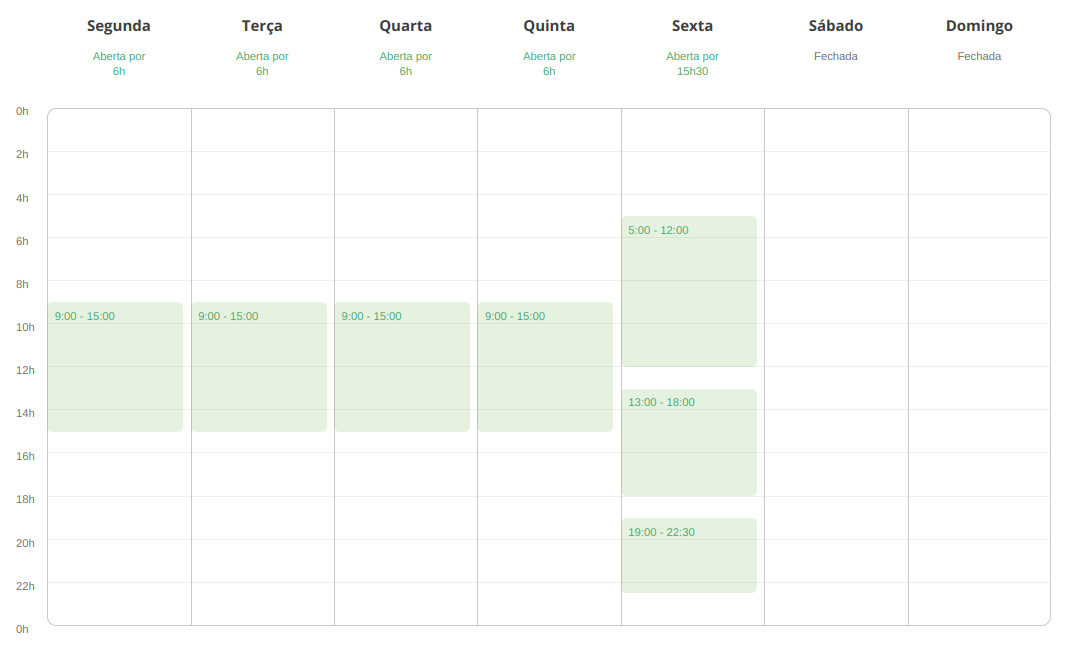 Corresponding payload:
{
"storeId": "09e9a8c8-fda3-4991-acfc-43b15397caf6",
"shifts": [
{
"dayOfWeek": "MONDAY",
"start": "09:00:00",
"duration": 360
},
{
"dayOfWeek": "TUESDAY",
"start": "09:00:00",
"duration": 360
},
{
"dayOfWeek": "WEDNESDAY",
"start": "09:00:00",
"duration": 360
},
{
"dayOfWeek": "THURSDAY",
"start": "09:00:00",
"duration": 360
},
{
"dayOfWeek": "FRIDAY",
"start": "05:00:00",
"duration": 420
},
{
"dayOfWeek": "FRIDAY",
"start": "13:00:00",
"duration": 300
},
{
"dayOfWeek": "FRIDAY",
"start": "19:00:00",
"duration": 210
}
]
}Check-in do entregador
Drivers check in via QR code to collect orders.Generate QR code
Use POST /merchants/checkin-qrcode to generate PDF with QR code.Limits:- Maximum: 20 stores per request
- All stores must be linked to the access token

AvailabilityAvailable only for Groceries type stores.
Next steps
- Introduction — Module overview
- Endpoints — Detailed technical reference
- Operations — Configure operation types
- Best Practices — Recommended patterns
- Homologation — Validation criteria
- Orders (Order) — Receive, confirm, and manage orders
- Logistics — Track order delivery
- Catalog — Manage menus and prices
- Events — Receive real-time notifications
Support
Questions or unresolved issues?- Contact support
- API References with all endpoints
- Homologation criteria to validate your integration
Was this page helpful?
Rate your experience in the new Developer portal:
On this page
Content read0%